


Scale for Measuring: How to Use an Online Ruler for Accurate On‑Screen Measurements
Aug 23, 2026
Need to measure something right now but can't find a ruler? A digital, on-screen ruler turns your monitor, laptop, tablet, or phone into a functional scale for measuring length in inches, centimeters, and millimeters - no download or installation required. This guide walks you through calibration, unit switching, and real-world use so you can get precise measurements from any device.
What Is a Scale for Measuring on Screen?
A "scale for measuring" in this context is not a weighing instrument. A weighing scale measures mass by detecting gravitational force, relying on mechanical forces or electronic sensors. An online ruler, by contrast, is a visual tool that displays actual size length markings directly on your screen.
Unlike physical scales - where weight-measuring devices distinguish between mass and weight - an on-screen ruler mimics a physical ruler to measure small objects like a credit card, jewelry pieces, spare parts, or labels. It works purely through light and pixels, and it needs calibration to match each display's diagonal, resolution, and pixel density.
Key concepts to understand early:
-
Pixels vs. physical units: Your browser thinks in pixels, not centimeters or inches. The physical size of each pixel depends on your screen.
-
PPI (pixels per inch): The true density of physical pixels on your display. It varies widely across devices.
-
Calibration: The process of mapping on-screen pixels to real-world millimeters or inches.
-
Practical scope: Best suited for quick measurements of small objects - not architectural distances.
At Omace Brands, we've manufactured precision weighing instruments since 1994. We apply that same focus on accuracy and standards to digital length-measurement guidance.
How Online Rulers Work: From Screen Size to Actual Size
Browsers only know pixel dimensions. They have no idea whether your display is a 6-inch smartphone or a 32-inch monitor. An online ruler works by estimating the physical size of each pixel using your screen size, resolution, and device info, then rendering tick marks at calculated intervals.
Here's the core formula:
PPI = √(width_px² + height_px²) ÷ diagonal_inches
For example, a 27-inch monitor running 3840 × 2160 resolution has roughly 163 PPI. Once PPI is known, converting a pixel distance to mm is straightforward: divide pixel count by PPI to get inches, then multiply by 25.4 to get millimeters.
The problem? Most online rulers default to 96 PPI without calibration - a CSS standard that rarely matches modern displays. High-DPI phones run 400–600 PPI, and 4K monitors sit around 150–220 PPI. Without adjustment, a one inch mark on screen could be physically much smaller than an actual inch. Most online rulers default to 96 PPI, affecting accuracy until the user calibrates.
The screen's diagonal is the essential input. Knowing it - combined with native resolution - lets the tool compute approximate physical width, height, and the true pixel pitch of the display.
Setting Up Your Online Ruler: Quick Calibration Methods
Calibration is the single most important step to turn a generic online ruler into a reliable scale for measuring at actual size. The online ruler is free to use. There are three common methods:
1. Auto-detect device model
Many tools maintain a database of device specs. Screen diagonal can be auto-detected or manually entered. This method is instant but may have rounding errors for less common monitors.
2. Set screen's diagonal manually
Enter your screen diagonal (for example, 6.1″ for an iPhone, 15.6″ for a laptop, or 27″ for a desktop monitor). The tool reads your resolution, computes PPI, and resizes the ruler accordingly. Set your screen's diagonal for accurate ruler measurements - accuracy typically falls within ±1% when the spec is correct.
3. Credit card calibration (most accurate)
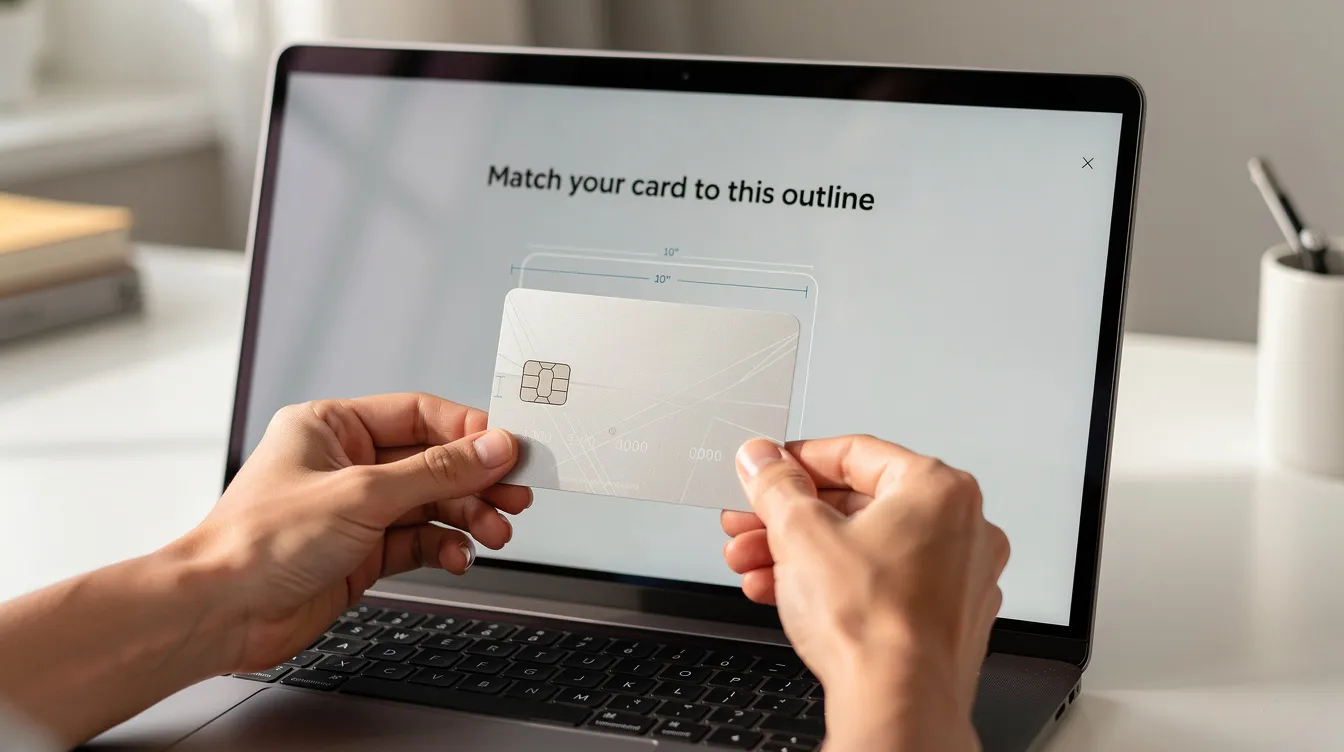
Place a standard credit card against the screen and use the cursor to drag a slider until the on-screen outline matches the card's edge. Standard bank cards are 85.60 mm wide for calibration - or 3.37 inches. Calibrate using a credit card's standard width of 85.6 mm for millimeter-level accuracy. This method implicitly accounts for OS scaling, zoom, and any spec rounding.
After calibration:
-
Calibration ensures 1 cm on screen equals 1 physical cm.
-
Calibration ensures 1 inch on screen equals 1 physical inch.
For corporate or lab environments, an admin can pre-calibrate frequently used devices and save settings in the browser so every user gets consistent results without repeating the process.
Measuring in Metric and Imperial Units
After calibration, users can switch between metric units (mm, cm) and imperial units (inches and fractions) using on-screen toggles or keyboard shortcuts. The conversion is exact: one inch equals 25.4 mm.
-
Metric: Tick marks appear every millimeter, with taller marks every centimeter. Ideal for designers, engineers, and lab work.
-
Imperial: Marks divided at 1/2″, 1/4″, 1/8″, and 1/16″ intervals. An inch ruler with fractional subdivisions suits US-based users and legacy industries.
For physical scale reference, architect's scales are marked as a ratio of inches to a foot, while an engineer's scale is typically 300 millimeters long. On screen, the same unit logic applies - only the measurement method changes.
Consistent units matter when recording dimensions for Omace weighing scale packaging, OEM housing specs, or printed overlays. A label designed in mm on screen should measure identically in mm on the physical product.
Horizontal vs. Vertical Ruler Modes
The online ruler can be docked in two orientations:
-
Horizontal ruler: Runs along the top or bottom edge. A horizontal ruler is better for desktop monitors and laptops when measuring landscape items - labels, photos, packaging widths. It offers the most width range on widescreen displays.
-
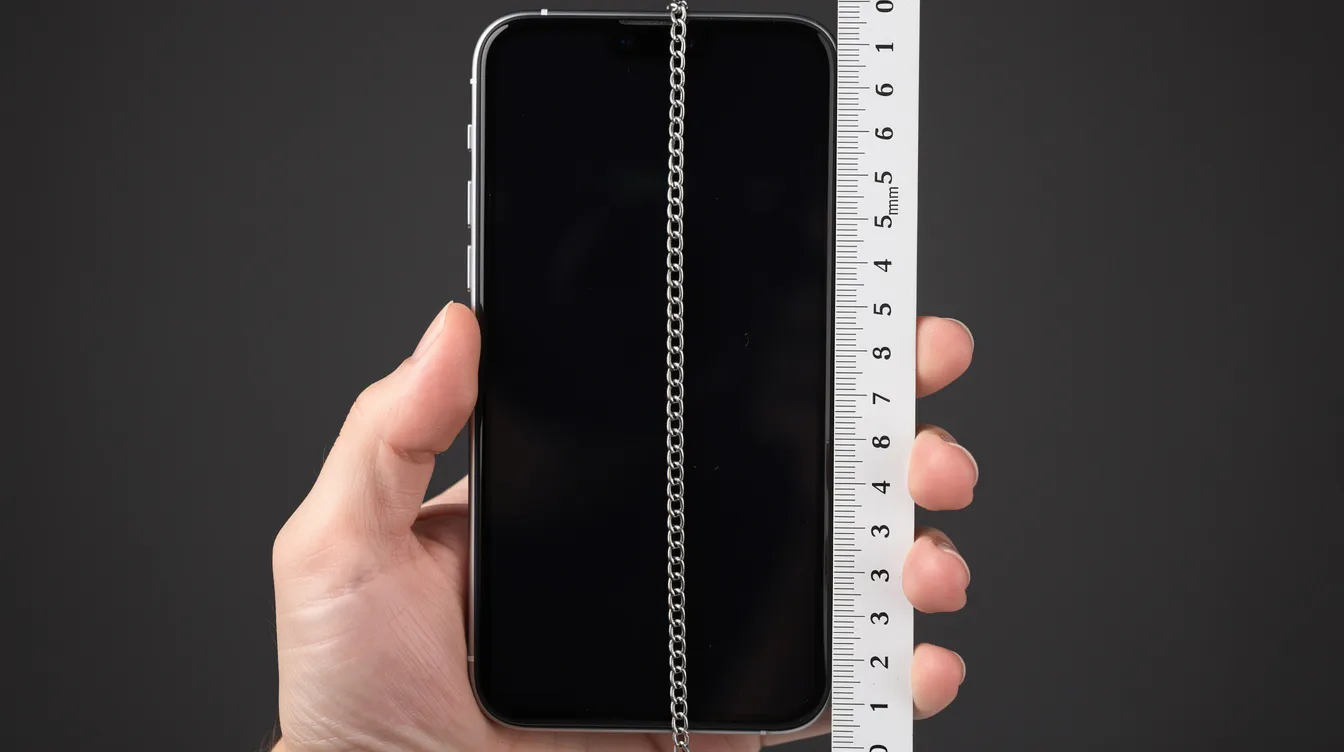
Vertical ruler: Anchored to the left or right side. A vertical ruler is suitable for mobile phones and tablets held upright, aligning with the longer dimension of the display. Use it for measuring jewelry chains, bottle heights, or cable lengths.
Switching is simple: a toolbar icon lets users toggle each ruler independently. Some advanced layouts allow rulers on all four sides simultaneously, creating a page frame for aligning app UI mockups or checking product dimensions.
Device, Browser, and Screen Size Considerations
Accuracy depends on your device, browser, and screen size. The good news: most modern setups are supported. It runs right in your browser and is available without ads.
-
Smartphones: Very high PPI (300–600+). The tool can auto-detect many popular models including iPhone and iPad.
-
Tablets: Moderate to high PPI with varying aspect ratios.
-
Laptops: PPI typically ranges from 100 to 250.
-
External monitors: Wide variation across 21.5″, 24″, 27″, 32″, and ultrawide displays. Users may need to confirm the diagonal manually.
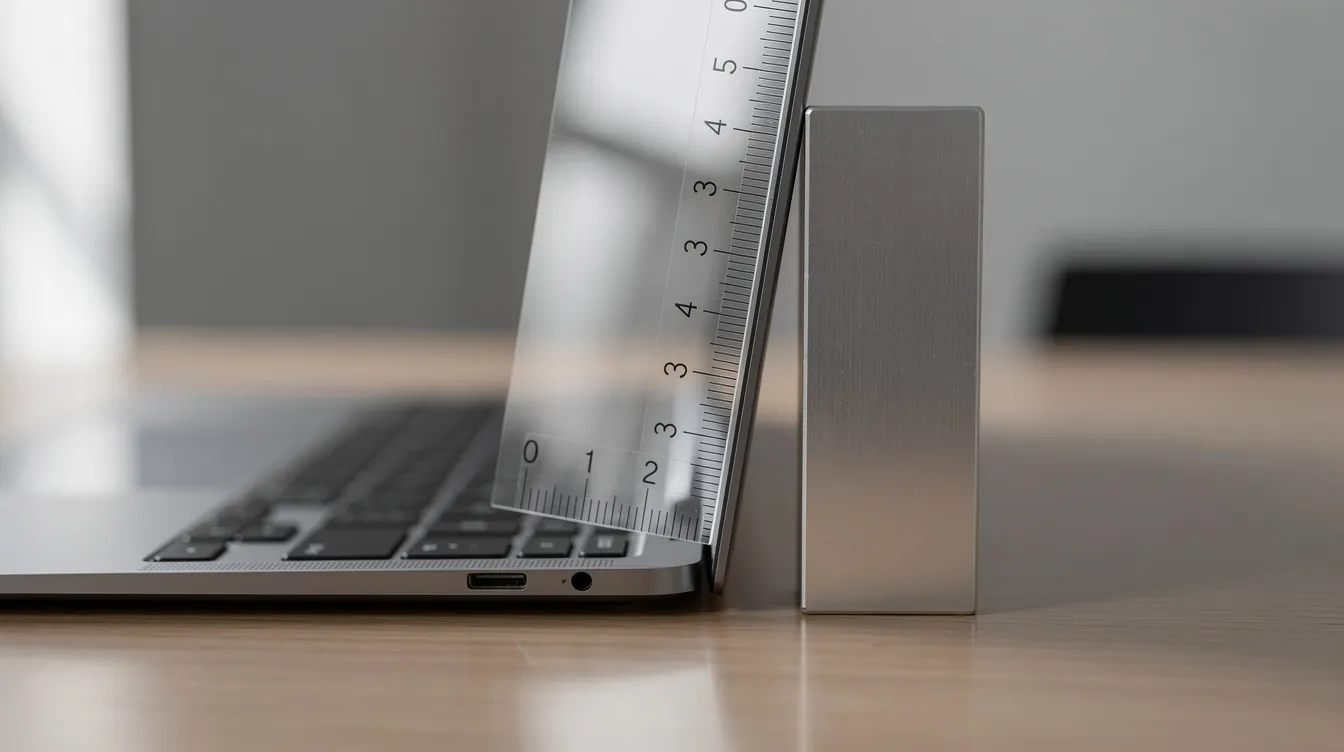
Browser zoom levels affect the accuracy of online rulers. Browser zoom level should be set to 100% for accuracy. In Chrome, press Ctrl+0 (Cmd+0 on Mac) to reset. In Edge, Safari, and Firefox, check the zoom indicator near the address bar and adjust to 100% before calibrating.
Differences between reported and physical screen diagonal can reach up to an inch, so final fine-tuning with a credit card or physical ruler is recommended for precision-critical tasks.
Practical Ways to Use a Digital Scale for Measuring
An on-screen ruler is faster than hunting for a tape measure when you need quick measurements. Here are real-world scenarios:
-
Household: Check the length of replacement screws, washers, SIM-card trays, or USB connectors by placing them against the screen edge.
-
Craft and hobby: Measure beads, fabric patches, or small wood pieces for projects.
-
Office and ecommerce: Verify that product images display at actual size, confirm label or sticker dimensions, or measure business card mockups.
-
Professional (Omace customers): Pharmacies confirming label widths for scale displays, jewelers checking component sizes before ordering, labs verifying diagram scales, and OEM clients validating housing cut-outs for custom weighing scale bezels.
Measure your phone or laptop screen's diagonal once with a physical tape, store the calibration, and rely on it for repeated precise measurements without re-calibrating each visit.
Accuracy, Limitations, and When to Use Physical Tools
A digital scale for measuring on screen is excellent for small objects and quick checks, but it has limits. The smaller the quantity and the greater the consequence of an error, the finer the scale resolution should be. Choosing the right scale depends on the precision required for the task, and different tasks call for varying increments, capacities, and sensor technologies in scales - whether digital or physical.
Common sources of error:
-
Incorrect screen diagonal input
-
Non-standard browser settings or JavaScript disabled
-
OS display scaling set above 100% (common on Windows at 125% or 150%)
-
Objects not flush against the screen edge, introducing parallax
Best-practice checklist:
-
Set browser zoom to 100%.
-
Calibrate once using a standard credit card.
-
Verify against a known object.
-
Trust the ruler for everyday use - but reach for a physical caliper when tolerances are tight.
For safety-critical dimensions, regulatory compliance, or manufacturing fits, always double-check with a physical tool. Mechanical spring scales operate based on Hooke's Law for force measurement; similarly, length measurement has its own precision hierarchy where on-screen tools serve as a convenient first pass, not a final certification.
Using Omace Measuring Solutions Together: From On‑Screen Ruler to Physical Scales
The online ruler fits naturally into Omace Brands' broader ecosystem of precision instruments. Designers can prototype packaging sizes and on-screen labels with the digital ruler, then move to physical verification using Omace kitchen, jewelry, or commercial platform scales for weighing and dimensional checks.
In the weighing world, the technology spectrum is wide. Digital electronic scales use strain gauges bonded to a load cell, where load cells deform slightly under load to measure weight. Mechanical balance scales operate on the principle of lever equilibrium, while beam balances compare an object with known standard masses until level. Spring balances measure weight by the displacement of a calibrated spring. Analytical balances often use electromagnetic force restoration for precision, and analytical balances use electromagnetic force compensation for precise measurements in laboratory settings. Electronic platform scales utilize shear-beam or compression load cells for heavier commercial tasks. At the frontier, Kibble balances measure mass by balancing gravitational force against electromagnetic force.
B2B and OEM clients can share exact dimensions in metric units or imperial units for custom scale housings, display bezels, or printed overlays - measurements first validated using the on-screen ruler, then confirmed with physical instruments. Omace's experience since 1994 in digital weighing scales, body composition scales, and industrial instruments informs every recommendation we make about accuracy, calibration, and usability.
Whether you're sizing a label, checking a component, or verifying a mockup, the right measurement workflow starts with proper calibration on screen and ends with physical verification. Visit onlineweighingscale.com to explore how Omace pairs digital convenience with physical precision across every scale we build.


